
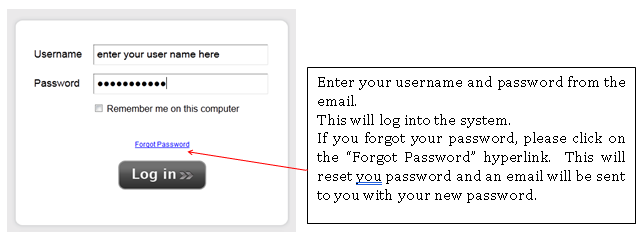
Welcome to our on-line timesheet system. In order to log into our portal you should have received an email with your log in information. If you have not received this email please reach out to your recruiter, the customer support team at customersupport@onwardsearch.com, or use the “Forgot Password” link shown below.
Click on the link in the email, which will bring you up to the log in screen seen below: https://onwardsearch.timesheetsareeasy.com/Login/
For this assignment, you will initially be submitting your hours into our Clients Timecard System, and then uploading screenshots from that system into our system in order to facilitate approval of your weekly payroll.
1) Creating Your Timesheet: In order to create a new timesheet you must select the week that you need to submit hours for and create a new timesheet. Click on the week in the calendar to select the correct week. Select the timesheet you would like to create, click “Create” and enter your hours for the week

You have the option to:
a) Create a Blank Timesheet
b) Copy Previous Timesheet
c) Create a 40 Hour Worked Timesheet
d) Create a No Hours Timesheet
2) Entering Your Hours: You can add additional blocks for the same week and depending on if your assignment requires lunch time to be accounted for, you may also have a lunch minutes section

3) Attaching Your Screenshots: You can add as many attachments as you need. After clicking the Attachments Button, click Browse to find the screenshot on your computer. Before hitting save, please be sure to click “Upload” to formally add the attachment to your timesheet.

4) Submitting Your Timesheet:

Once all of your time has been entered for the timesheet period, make sure to hit the “Submit” button on the bottom of the page. Once you hit that submit button at the bottom of the page, the timesheet status will update to “Submitted”. This is located in the upper right portion of your screen.
You will receive an email once your timesheet has been approved. In the event that your timesheet is rejected, you will receive an email alerting you to adjust your time.
Time can be entered on a daily basis. If you prefer to enter time this way, simply enter the hours for the day and exit out of the system. The hours are automatically saved.
If you should have any questions, online help is always available at: http://employeehelp.timesheasy.com/s/Employees/m/5172
Comments
0 comments
Article is closed for comments.