
Welcome to our on-line timesheet system. In order to log into our portal you should have received an email with your log in information. If you have not received this email please reach out to your recruiter, the customer support team at customersupport@onwardsearch.com, or use the “Forgot Password” link shown below.
Click on the link in the email, which will bring you up to the log in screen seen below.
https://onwardsearch.timesheetsareeasy.com/Login/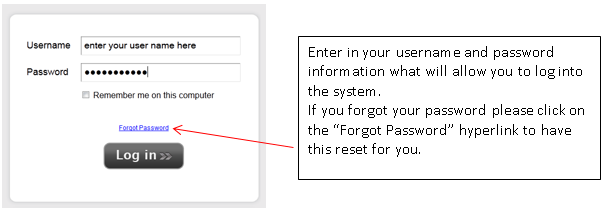
To enter in your time:
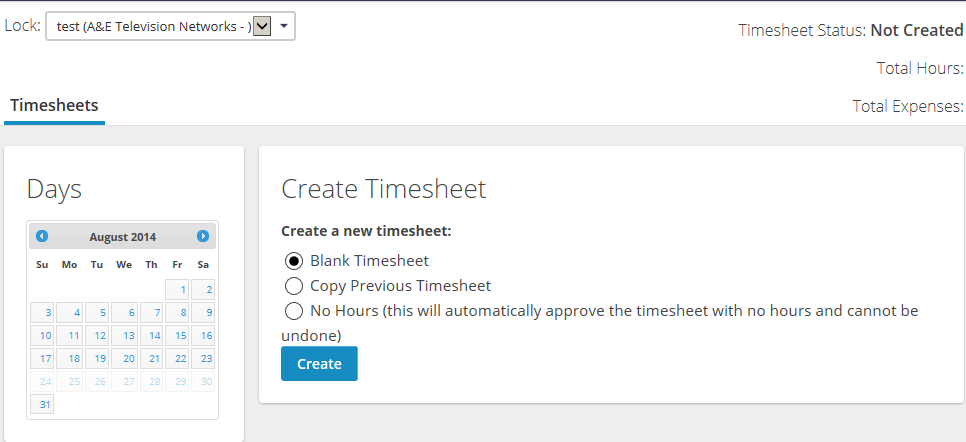
In order to create a new timesheet, you must select the week that you need to submit hours for and create a new timesheet. Enter your hours for the week.

Once you log in you must select the day that you want to enter in your hours. Enter your time in and time out as seen above. You can type in your hours in a number of fashions, and the system will translate it appropriate.
For Example: 8:30 AM can be entered in any of these ways: 8:30 AM, 8:30 A, 830 A
You can change the hours type to indicate any breaks you have taken that particular day.
If you are working on any pre-set projects, please be sure to choose them from the drop-down next to each hours block. If you are working on a new project, or need to indicate anything specific to the hours block you are entering, you can enter such details in the note field next to each hours block, or use the “Notes” button at the bottom of the screen to add a general note to the entire timesheet.
Once all of your time has been entered for that week, you will want to be sure to hit the “Submit Timesheet” button on the bottom of the page, your timesheet status will switch to Submitted at the upper right portion of your screen.

You will receive an email once your timesheet has been approved.
Time can be entered on a daily basis. If you prefer to enter time this way, simply enter the hours for the day and exit out of the system. The hours are automatically saved.
If you should have any questions please feel free to go to http://employeehelp.timesheasy.com/s/Employees/m/5172
Comments
0 comments
Please sign in to leave a comment.